How to Use Pharos Printers
All wireless and library computing areas (ACC and Library) are connected to Pharos printers.
Note: Free student printing is limited to 300 black & white sheets (single-sided or double-sided). A charge of 10 cents per sheet will apply if you exceed this limit. These funds must be deposited in your TigerCard Tiger Dollars account. Unused printing allotment expires at the end of each semester and does not carry over.)
You can quickly and easily configure your own computer to print to all of the Pharos printers with one installation. For the printer driver, please select the appropriate link for your operating system:
How to Print From Pharos
- Select PRINT from within the software program you are using.
- Black and white Pharos printers print double-sided by default. To print single-sided you must select advanced options when sending the print job (File - Print -Properties or Layout).
-
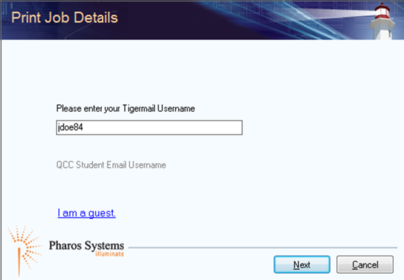
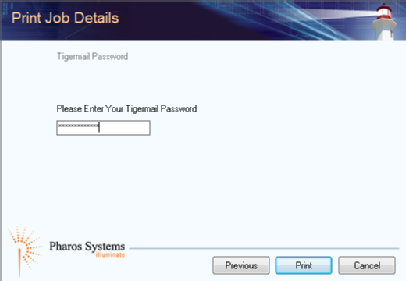
A Pharos popup window will appear on your computer’s screen prompting you to log in. Type in your Tiger ID Account username and then hit NEXT. Enter your Tiger ID Account password. Select PRINT at lower right.
At the Pharos Printer/MFP Touch Panel:
-
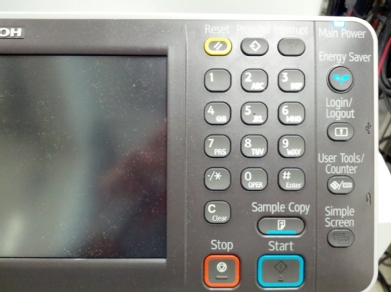
If the touch screen is idle, press and hold ENERGY SAVE at upper right for one second.
-
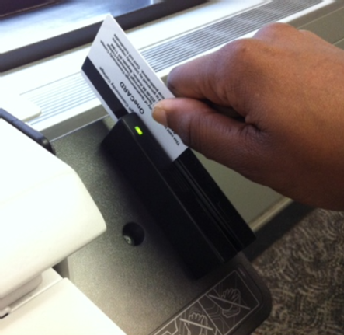
Swipe your TigerCard at right.
-
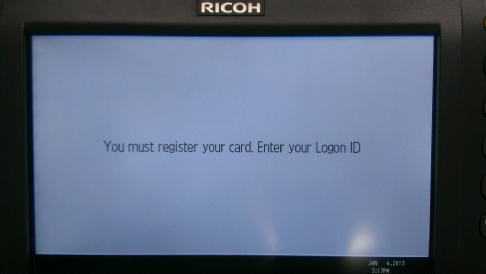
First time users must register their TigerCard. Enter your Tiger ID Account username and password.
-
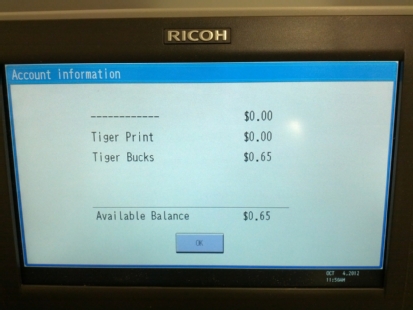
Your account balance will be displayed on the screen. Tap OK.
-
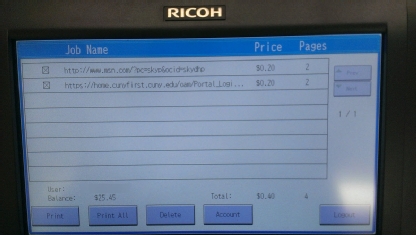
Your current print jobs will be listed. Touch the job you wish to print and select Print. You can also select Print All to print everything listed in your queue. Nothing is deducted until the job prints out. You can also delete jobs. Documents remain in your list for eight hours.
-
Select Logout at lower right to log off of Pharos.